
Arabic and English size charts for your Zid store
Mqas Size Chart adds a button to your product page. Shoppers tap it to read the chart in their language, or enter their measurements and get the closest size. You set it all up in the app.
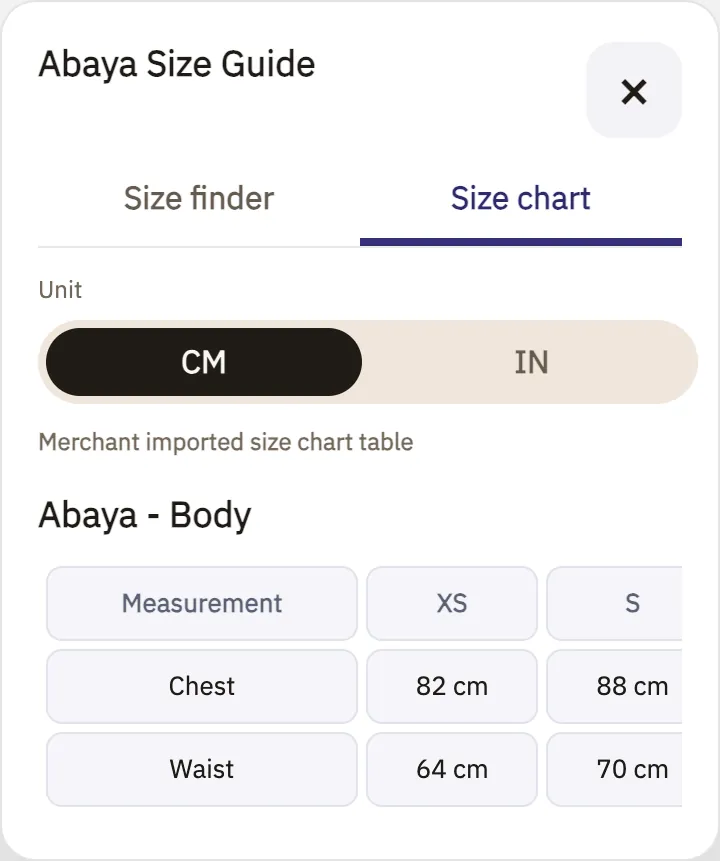
What shoppers see on the product page
Screenshots of the product page. The colours come from the button and calculator settings.
-
A button on the product page
It sits after the product options. You choose its text, colour and icon.

-
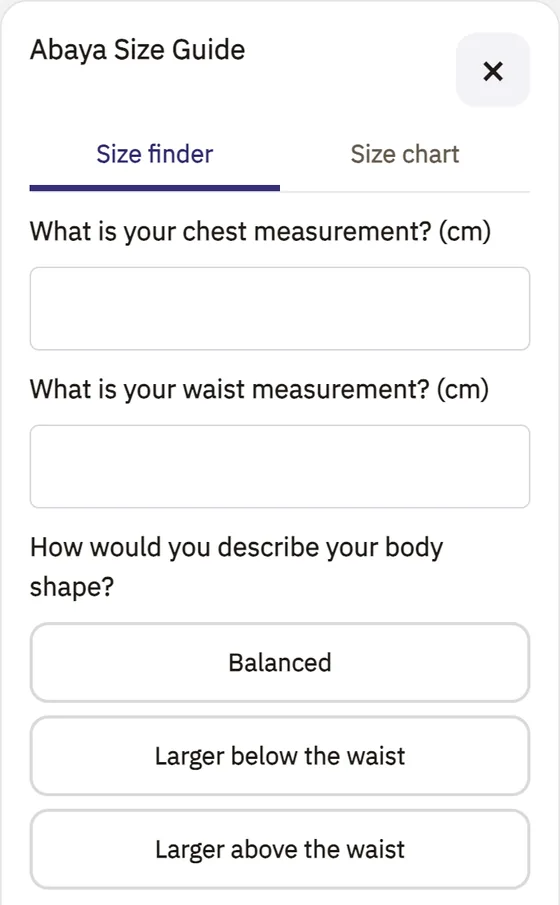
Size calculator
Shoppers enter their measurements and answer the questions you set.
-
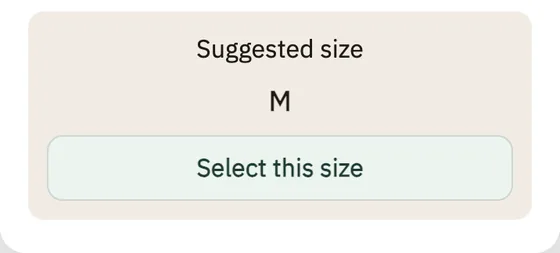
Suggested size
The result comes from your chart's numbers. The select button tries to set that size in the product options. If it can't, shoppers see a message asking them to choose it there.
Three steps in the app
These are the setup steps as you see them after connecting your store.
-
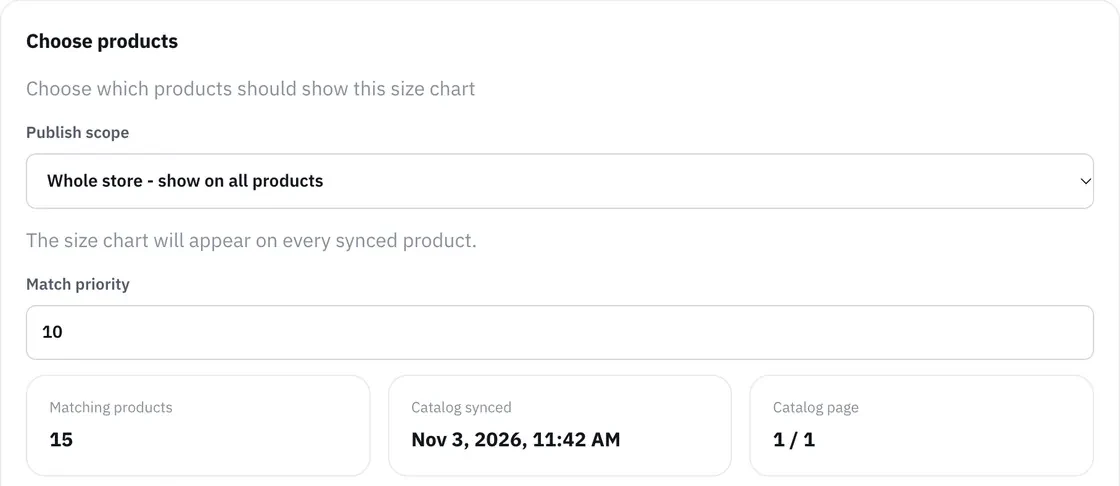
Choose products
The whole store, one category, or products you pick.
-
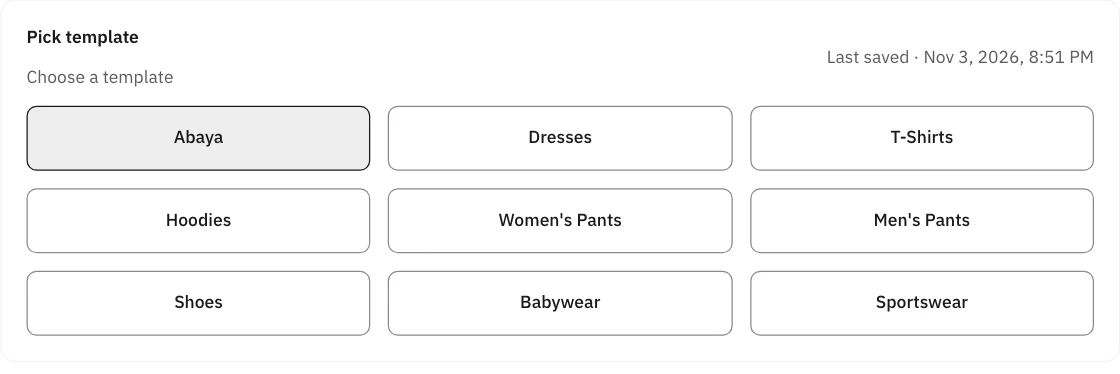
Pick a template
Nine templates: abaya, dresses, T-shirts, hoodies, women's pants, men's pants, shoes, babywear and sportswear. Each starts with ready-made sizes and measurements, and you edit it to fit your product.
-
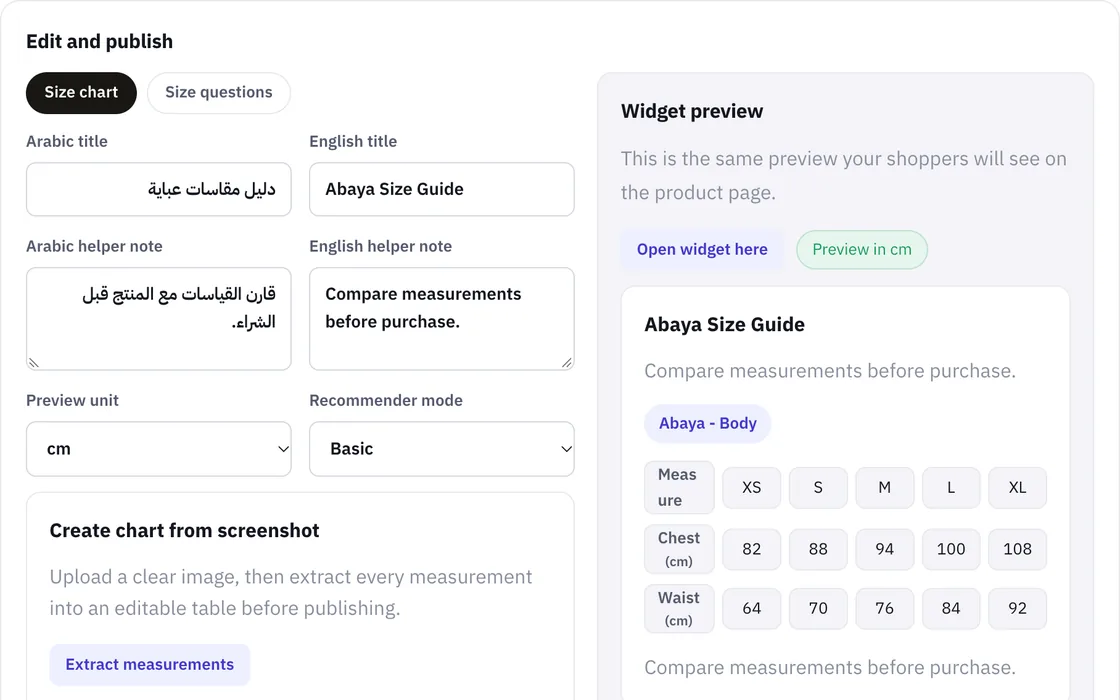
Edit and publish
Write the text in both languages and edit the numbers, or import an Excel or CSV file. The preview sits beside you, and shoppers see nothing until you publish.
Details
- Two languages, one chart
- Title and row names in Arabic and English, both required to publish. The window follows the store page's language and direction.
- cm and inches
- Shoppers switch units in the window, and their browser remembers the choice.
- Size calculator
- Measurement questions you set, with a result worked out from your chart.
- Import
- From an Excel or CSV file, or from an image of a clearly ruled table with English text. You review the result before publishing.
- Where it shows
- The whole store, one category, or products you pick.
- Button style
- Text in both languages, colours, corner radius and icon, plus up to 2,000 characters of custom CSS.
- Button position
- After the product options by default on Zid. Change it with a CSS selector.
- Analytics
- How often the window opens, how many shoppers start the calculator, and how many select the suggested size.
Why not just upload an image of the chart?
An image in the product description is the common approach, and sometimes it is enough. Here is the difference.
| Image in the description | Mqas Size Chart | |
|---|---|---|
| Reading on a phone | Shoppers zoom in to read the numbers | Text in a window built for phones |
| Language | One language per image | Follows the store page's language |
| Units | Whatever the image shows | cm or inches, as the shopper chooses |
| Finding a size | Shoppers compare the numbers themselves | A calculator suggests a size from the chart |
| Editing | Upload a new image on each product | Edit the chart once and publish |
Questions
Does it slow down the product page?
It adds three script files, 6.8 KB gzipped in total, and the product's data file. The chart window (8.9 KB gzipped) loads only on tap on phones, and when the browser is idle on desktop. Sizes measured from cdn.mqas.app on 3 November 2026.
Can I write the English text separately?
Yes. Each text has its own Arabic and English field. Both must be filled in to publish.
Can I have more than one chart?
Not yet. It is one chart per account for now, and you choose which products it shows on.
How much does it cost?
Prices aren't announced yet. They will be on the app's Zid listing when it goes live.
How do I reach you?
Email [email protected].